
Desktop app
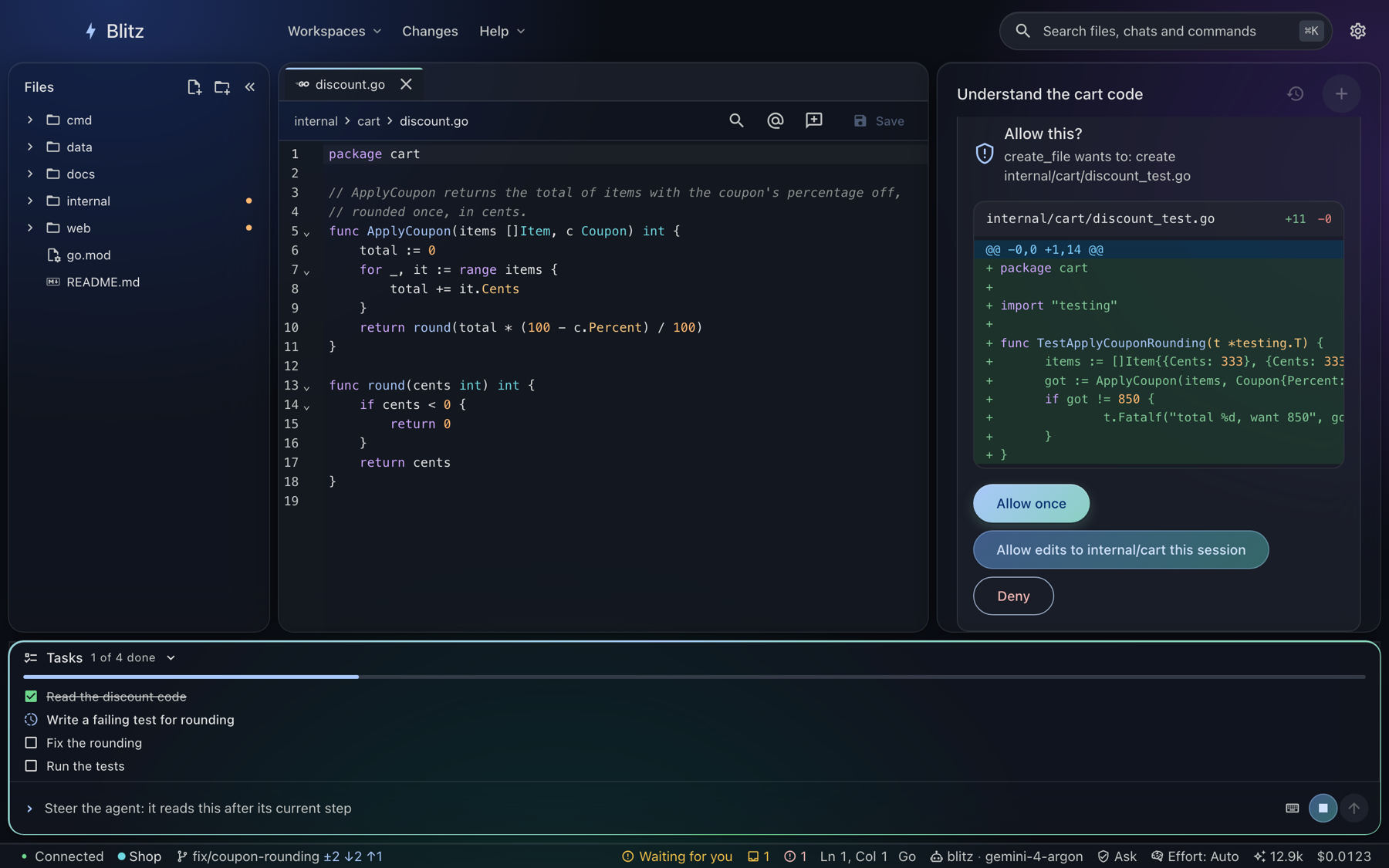
Blitz’s desktop app is a window onto the service, laid out like an IDE: the workspace’s files on the left, an editor in the middle, and the agent’s chat on the right. It contains no engine. Every workspace, turn, approval, session and worker lives in the service, which keeps running, and keeps running workers, after the window closes. Source: apps/electron (Electron) and apps/desktop/web (React and TypeScript), with blitz-tray --serve as its host (pkg/pagehost). Specs: desktop, Electron, files.
Since v0.7.0 the desktop app is built on Electron, the same on every platform:
- macOS 13 and later:
Blitz_<version>_macos_arm64.dmg(Apple silicon) orBlitz_<version>_macos_x64.dmg(Intel), signed with a Developer ID and notarized when the release is. - Windows 10 (1803) and later:
Blitz_<version>_windows_x64_setup.exe. Run it: it installs Blitz for you, with no administrator needed, adds it to the Start menu, the desktop and Add or remove programs (where you can uninstall it; your settings and conversations stay), and starts it. It isn’t signed yet, so SmartScreen asks first (More info › Run anyway). Or takeBlitz_<version>_windows_x64.zip, unzip it anywhere and runBlitz.exe. Either way Blitz keeps itself up to date. - Linux:
blitz-desktop_<version>_<arch>.debfor Ubuntu 24.04, Debian 13 and later, the Arch Linux package, orblitz-desktop_<version>_linux_<arch>.tar.gzfor any distribution (unpack it and runblitz-desktop; on Ubuntu 24.04 and later prefer the.deb, which can set up Electron’s sandbox).
Each carries its own blitz, blitzd and blitz-tray, so the app can install the service without a separate download. The app updates itself from the releases: when it opens (every five days at most) it looks for a new one, downloads it, checks its signature, and offers Restart; Settings › About checks now, and Update automatically turns it off. A package manager’s copy (the .deb, the Arch package) is updated by the package manager instead.
From source: bazel build //:mac-app on macOS, //:deb, //:pacman or //:desktop-tar on Linux, and //:windows-zip anywhere; or bazel run //:desktop to run it. See building.
On Linux, the shell sandbox is required. The .deb installs bubblewrap with it, and the app’s Settings › Service says whether bubblewrap runs. On Ubuntu 24.04 and later, AppArmor restricts the user namespaces it needs; blitz security fix-apparmor (or Allow bubblewrap in the desktop app) installs an AppArmor profile that lets bwrap alone have them, asking for your password once. Until the sandbox works, workspaces don’t open; to run the agent’s commands unsandboxed instead, set [sandbox] shell = "auto" in ~/.blitz/.env.toml. A workspace that didn’t open for want of it shows the same button above it, and the service restarts once it’s fixed.
On Linux, the window draws with your graphics card, which keeps the app light on the processor. If the window flickers or goes blank (some drivers and virtual machines), turn off Use the graphics card in Settings › Appearance (with the advanced settings shown) and restart Blitz; if it won’t start at all, start it once with BLITZ_GPU=off blitz-desktop.
The Linux .deb runs in ChromeOS’s Linux container (Crostini): amd64 on Intel Chromebooks such as the Pixelbook, arm64 on ARM ones. It hasn’t been tested there yet; reports are welcome.
- Debian version. The container is Debian 12 or 13 (
cat /etc/debian_version); the package’s libraries (GTK 3, NSS and the like) are in both. A Chromebook past its last ChromeOS update keeps its container’s Debian updates, but may never move to a newer Debian. - Install.
sudo apt install ./blitz-desktop_<version>_amd64.deb, which brings bubblewrap, the shell sandbox Blitz requires on Linux:blitz doctorsays whether it works in the container, and if it can’t,[sandbox] shell = "auto"in~/.blitz/.env.tomlruns commands without it. gVisor is unlikely to run there; skill scripts use bubblewrap instead. - A blank or garbled window. Some Chromebooks can’t pass the graphics card through the VM: start the app with
BLITZ_GPU=off blitz-desktop, then turn off Use the graphics card in Settings › Appearance to keep it so. - Folders. Linux sees its home directory and the folders shared with it in the Files app (under
/mnt/chromeos/); open workspaces from there. - Keys. The container has no keyring, so API keys are kept in
~/.blitz/secrets.toml, readable only by you. - The service runs as a
systemctl --userservice in the container. ChromeOS stops the container when you shut down or leave Linux idle, so scheduled workers only run while it’s up.
Unzip blitz_<version>_windows_amd64.zip and run blitz-tray.exe. It starts the service and puts a bolt in the notification area (amber while the service runs, grey when it doesn’t). Open Blitz shows the app in an Edge window with no tabs or address bar, served by the tray on 127.0.0.1 to that window only; Start Blitz at login keeps it. Most of the app works as on macOS and Linux. Choosing a workspace asks for its path, and Export as PDF and installing the CLI aren’t there. Spec: Windows.
- Top bar. A menu bar starting over the center panel: Editor; Changes (this session’s, or git’s); Agents (add one, or click one to edit it, with a remove button on each) and Workers (add one; each worker’s row has Run, Disable or Review and enable, Edit and Delete; and the background runs started with
blitz --bg, where opening one follows it in its chat); Workspaces (open, switch, close, reopen a recent one; the pencil on a workspace opens its settings); Help (the user guide and each of its sections, in the app; setting up the agent harness; About); then a search bar for files, chats and commands (⌘K or ⌘P) and Settings. Search the workspace (⇧⌘F) finds text in its files, PDFs, chats and notes (workspace search); its settings are in Settings › Workspaces › Search. A CSV or TSV opens as a table: search all columns, filter each (>5,10..20,=north,empty), sort by a header, page through files of any size (your settings, for every workspace). - Files. The workspace as a tree with each file’s version control status (changes included in the next commit marked; right-click to include, leave out, discard or commit), hidden files toggled (hidden by default, agent instruction files such as AGENTS.md and CLAUDE.md among them), ⌘P (or the top bar’s search) to go to a file. Drag files and folders onto a folder to move them (onto the background for the top level); click the background or press Escape to clear the selection. In a git repository, right-click a file or folder to include it in the next commit (or leave it out), discard its changes, mark it Do not version (or Version it again), see a file’s or folder’s history as a graph (and the whole workspace’s, from the Changes menu), compare any two commits, and restore an earlier version, or Commit changes… with what’s included (also in the Changes menu): the model drafts the message from the changes included, and you edit it before committing (Include all changes when nothing is included yet); the files the agent creates are added to git when its turn ends (
[git] auto_add). The shelf minimizes to a rail; drag its edge to widen it. Right-click an editor tab to close it, the others, those to its right, the saved ones or all of them. - Editor. Syntax highlighting and completion. Zoom the editor and documents with ⌘ or Ctrl and
+/−/0, the wheel or a pinch; Markdown documents use the editor’s full width or a readable column (the tab’s ↔ button, or Settings › Appearance), and diagrams pan and zoom (drag, ⌘/Ctrl and the wheel, or Expand to see one over the window). With the workspace’s language servers (gopls, typescript-language-server, pyright; the status bar says what to install when one is missing), code completes from the project, problems are underlined and listed in the gutter, hovering shows a name’s documentation, and ⌘-click or F12 goes to its definition. In advanced mode a Markdown file also opens Visual: edited as the rendered document, with a toolbar and a right-click menu for headings, lists, tables, links, images, code blocks and diagrams, and written back changing only what you edited. Its Go, TypeScript, JavaScript and Python code blocks get the same language-server help as a file, seeing the workspace’s own packages. Saving won’t overwrite a change made meanwhile by someone else, such as the agent, and the agent is told what you edited. Export in a Markdown file’s bar prints its preview, diagrams and all, to a PDF beside it with the system’s own web engine, or writes it as a Word document. Sound files (.wav,.mp3and the like) play when you open them. - Secrets (Settings › Secrets, with advanced settings, and each workspace’s settings). Keep tokens and passwords in the system’s keychain and write
{secrets:global:name}(or a workspace’s own,{secrets:workspace:name}) in a prompt, an agent’s instructions or an MCP server’s settings: Blitz puts the value in only as it calls the model, so it never shows up in a conversation or a log. - MCP servers (Settings › MCP servers, with advanced settings). Add the servers that give the agent more tools (GitHub, a database, your issue tracker): a command to run or a web address. Turn one off or on, edit or remove it, and open workspaces follow at once, without restarting anything. The tray has the same switches.
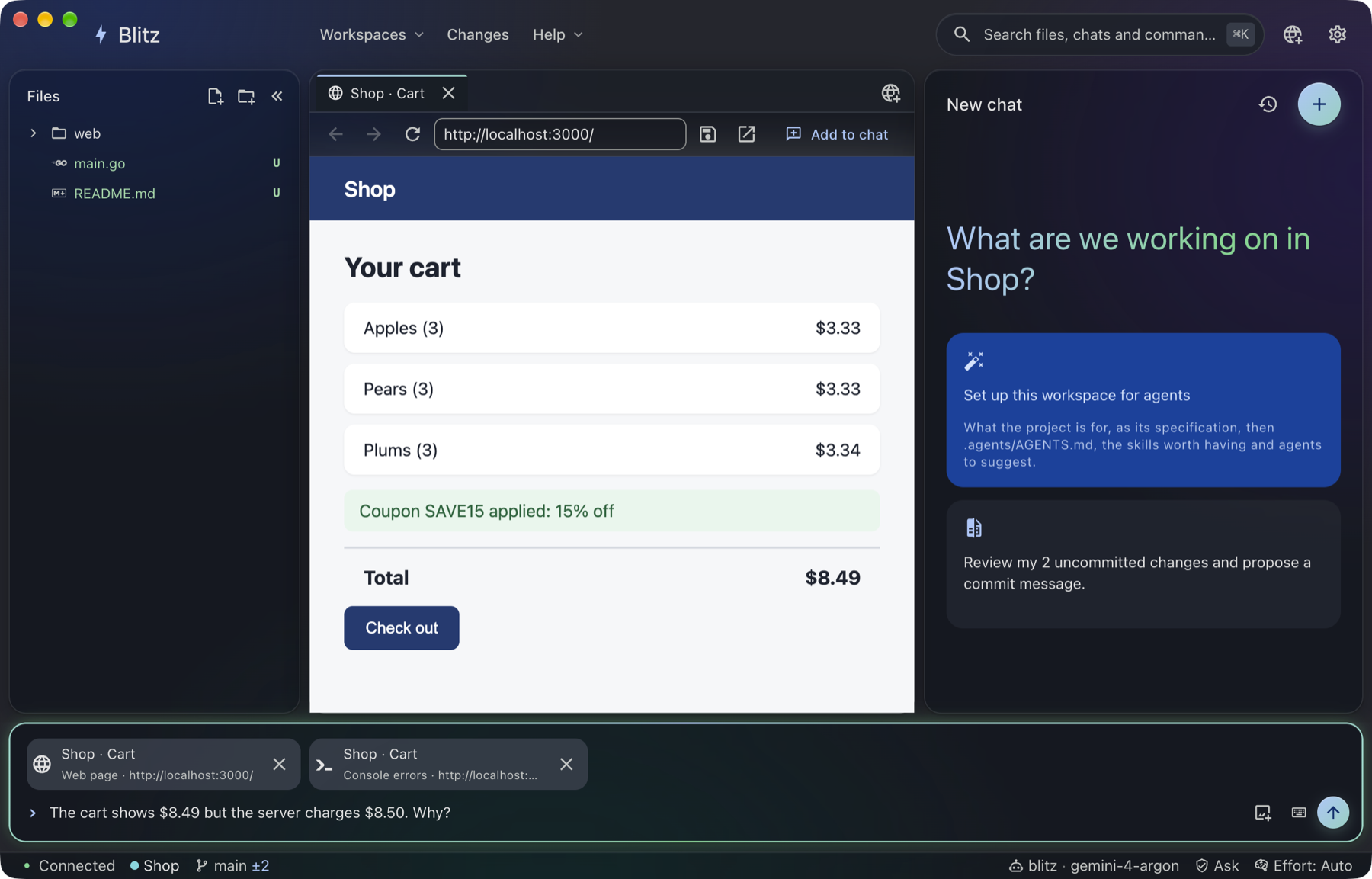
- Web pages (the Electron app). Open the app you’re building beside the chat: Open web page… in the ⌘K palette or the globe in the top bar, or click a
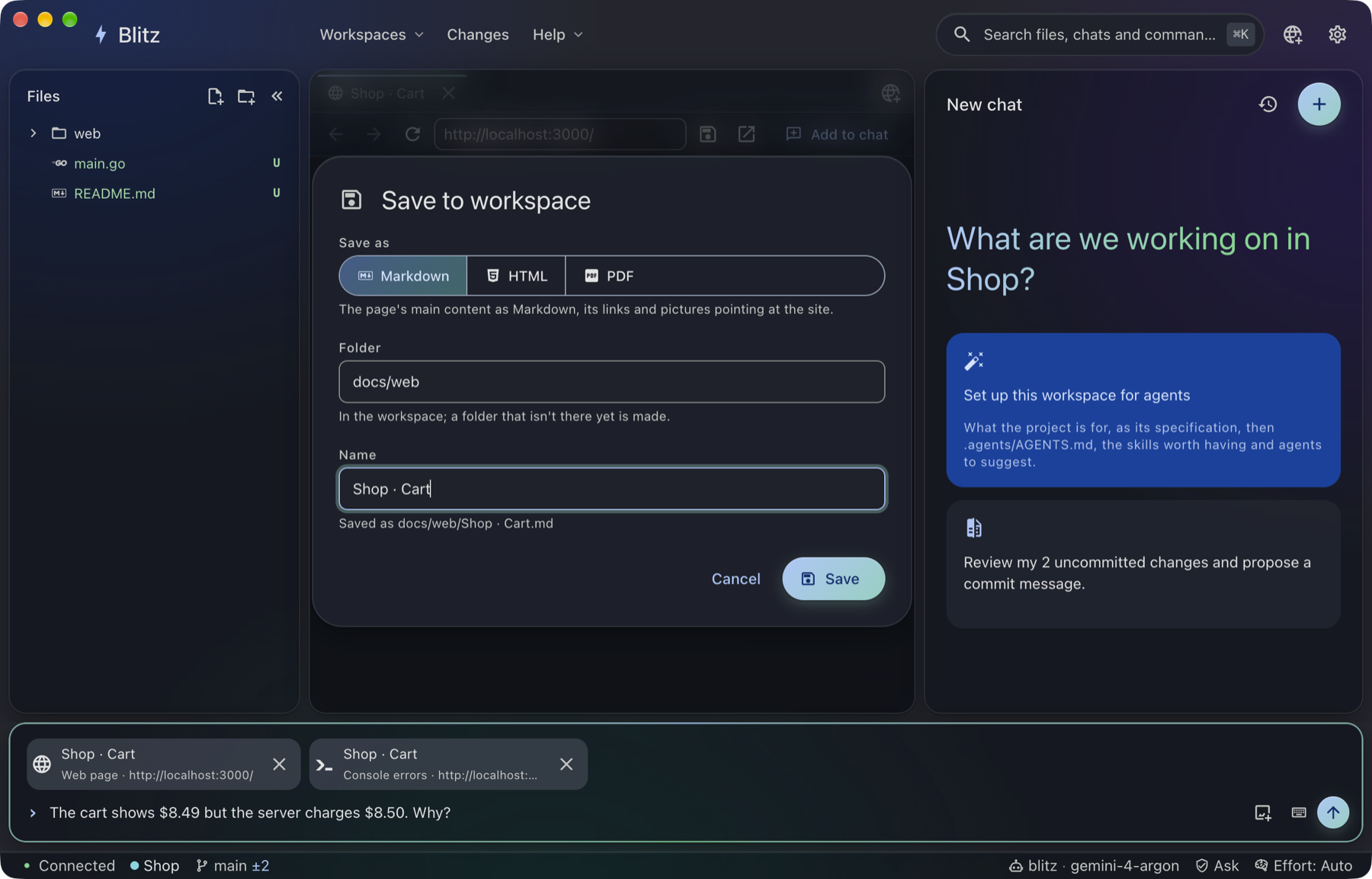
localhostlink in the chat. The page opens in an editor tab with back, forward, reload and an address bar that also searches Google (type words instead of an address). Add to chat puts the page, your selection on it, a screenshot or its console’s errors in your next prompt; the agent reads them as content, never as instructions. Save to workspace keeps the page as Markdown (with its pictures saved beside it, so the agent and the editor have the whole page without the site), HTML or PDF, in a folder you choose (made if it isn’t there). Only web addresses open, and sign-ins in these tabs stay apart from the app. - Chat.
@to mention a file or folder (completed as you type), whose content goes with the prompt, or add one from the Files view (the file bar, or right-click in the tree), or start a conversation about it; Markdown files open rendered as documents (switch to the source with ⌘⇧V; ⌘F finds in either), with Mermaid diagrams and math ($…$,$$…$$, as on GitHub) drawn, pictures shown when they’re in the file (base64) or the workspace (a web picture stays a link, never fetched), and relative links opening the file or folder they name; Show in Finder (Dolphin, Files, …) from the tree; images and PDFs shown, and attached to a prompt (attach, paste or drop); Markdown replies, the agent’s task list, approvals and plans as cards, rewind or edit from any earlier prompt, and copy any answer as shown (with its formatting, for a rich editor) or as Markdown, or a whole turn’s answer when it came in parts. When no file is open, the chat takes centre stage; with files open, the expand button in the chat’s header lays it over the editor to read a long answer at full width, and the editor’s own expand button does the same the other way. The pane behind leaves a rail with its name (and the files open, or a dot when the agent waits for you): click it, or shrink, to have both again. History lists the workspace’s chats and workers’ runs: search them, show only chats or only workers’ runs, and delete one from its row, or tick several (or all shown) and delete them together (never the one open). A new chat suggests where to start: the latest conversation, uncommitted changes, a failed worker, and ideas written from your recent chats (kept until a conversation changes;[suggestions]turns them off or picks their model). - Setup. In a workspace without agent instructions, the first tile is Set up this workspace for agents; the wand in the top bar and the command palette start it any time. The setup agent asks about the project, writes
.agents/AGENTS.md, makesAGENTS.md,CLAUDE.md,GEMINI.mdandBLITZ.mdimport it, and offers skills and agents to add. - Workspace settings. Everything about a workspace in one form, in Settings › Workspaces (the pencil on a workspace in the Workspaces menu opens it there): its name, description and colour, agent, model, speech model (for audio overviews), reasoning effort, generation settings, permission mode and rules, API keys, standing approvals, its project settings (trust them, or not) and its settings file.
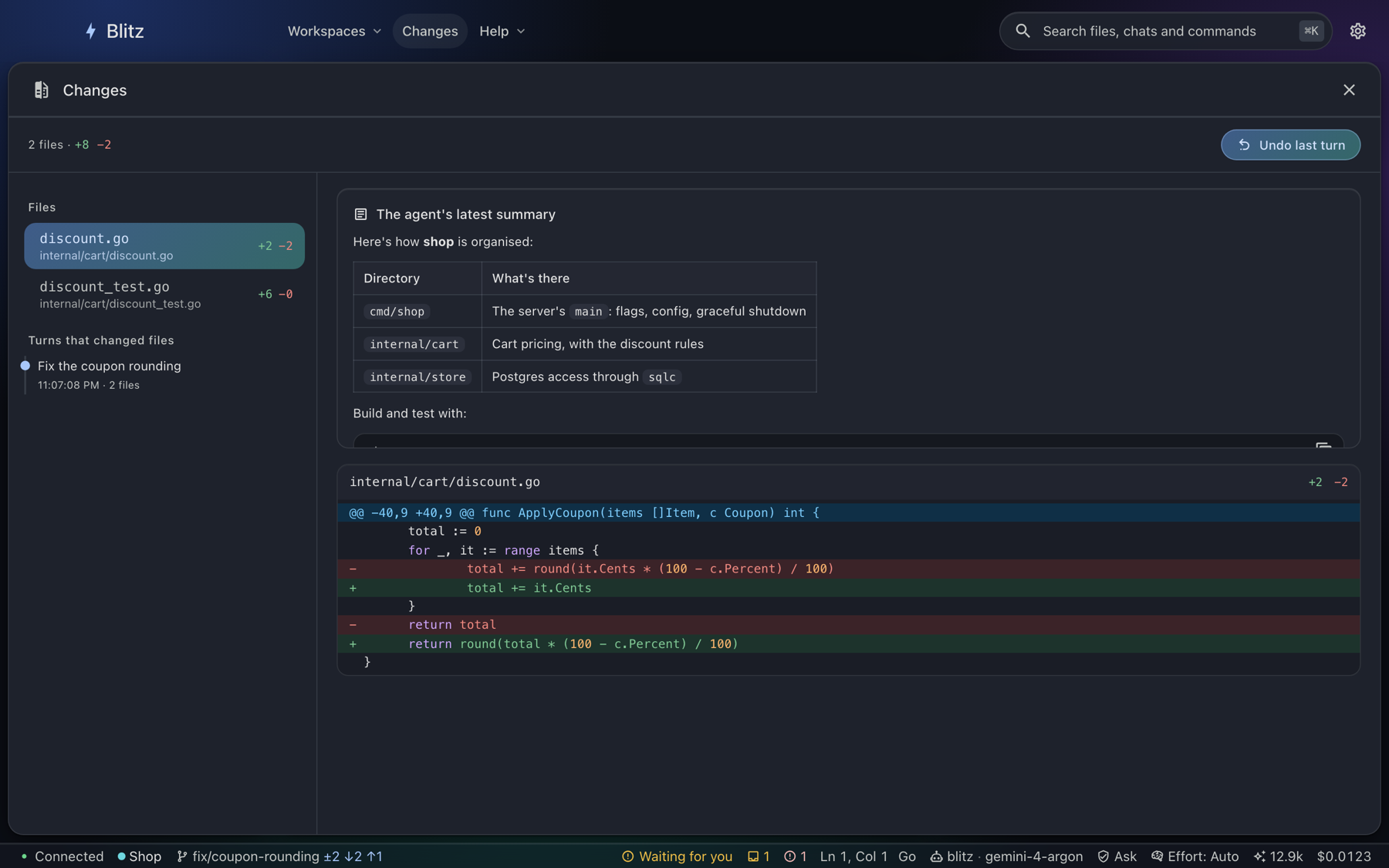
- Changes. The session’s diff beside the agent’s summary, or git’s, in the drawer (the Changes menu, or the changed files in the status bar). On git’s, the current branch (click it to switch to another, make a new one, or merge one into it), Commit changes…, and with a remote Pull and Push, each showing how many commits it would bring or send. A pull follows your git config (merge or rebase) and keeps uncommitted work. When it stops on conflicts, each file is marked: open it in the editor, keep your side or take theirs, or mark it resolved once edited. Or ask the agent to resolve them, then complete (or abort) the merge. Merging a branch that conflicts works the same way. Git never asks for a password here: sign in once with git in a terminal, or use an SSH key or credential helper. Blitz won’t run commands that the repository’s own
.git/confignames (an SSH command, a credential helper), since the agent can write that file. Keep those in your global git config. - Agents. The workspace’s own agents (
.agents/agents), in Studio › Agents, skills and rules… › Agents: the list fills the pane, and an agent’s form slides in over it, with Cancel and Save to go back, and Redraft to have the model write or improve the instructions: name, description, system instructions and whether it runs in the background, with the rest under Advanced: its file name, model, agency, permission mode, max model calls, isolation, tools and model settings (effort, thinking budget, temperature, top_p, max tokens) for that agent alone. Your own agents, for every workspace (~/.blitz/agents), are in Settings › Agents. Changes apply from the next prompt. - Skills. In Studio › Skills, the workspace’s skills with their kind (simple, with references, with scripts, combining skills); a skill’s form slides in with General, References and Scripts tabs: instructions with Redraft, the skills it combines, the agents it’s offered to, its files in an editor, and a script’s Test run. Add from… copies or references any skill you can see. Type
\in the chat for a skill by name. - Rules. In Studio › Rules, the rules checked before the agent runs (on your prompt) and after it answers (on its answer and changes), in the order they run (drag to reorder), each blocking, warning or asking for a revision; and the instruction rules. A rule’s form has Redraft and Try it.
- Guardrails. In Studio › Guardrails, the built-in guardrails, on by default (prompt injection in what tools bring back; secrets and personal data in answers; limits on spending, model calls, files changed, domains and commands): tune them, switch one off, or reset it to its defaults, or write your own check in plain English for prompts, tool results, answers or actions. Each blocks, warns or (for secrets) masks; Try it checks a sample.
- Evals. In Studio › Evals, right after Agents, the workspace’s evals, each with its last run and ▶ to run it: its cases (a prompt and the answer expected, exact or near), the agents and skills they run with, and its runs, scored live as they go. Draft evals writes cases for an agent that has none (from its description and instructions), and after a run Refine its instructions rewrites an agent’s instructions from the cases it missed. An agent’s form shows its evals, and saving it offers to run them.
- Workflows. In Studio › Workflows, the workspace’s workflows on a canvas: add steps (agent, refine, summarize, gather, browse, script, read or save a file), join them by dragging, set each one beside the canvas, start from a template. Run runs one in the background, marking each step as it goes and asking for approvals beside the canvas; in the chat,
/nameruns it too. - Workers. In Studio › Workers, the workspace’s workers fill the pane, and a worker’s view or form slides in over them. The limits on every worker (model calls, cost, time, runs at once, the permission kinds allowed), your global workers, and every workspace’s (flagged when it isn’t in the app, or its folder is gone), are in Settings › Workers. A red dot on a workspace, and on its Studio button, says a worker failed since you last looked. The workspace’s workers, their schedules and runs, and New worker, a form for each of a worker’s settings and its workflow, saved as
.agents/workers/<name>/WORKER.mdonce it’s valid. Edit opens the same form on an existing worker (or one whose file is broken); saving an enabled worker pauses it until you enable it again, since you review what runs. Each slides in over the list: what it does and its runs, and its form a click away (Edit). Closing a form with unsaved changes, or opening another view in its place, asks first. - The drawer. Settings, the user guide, Changes, History, an agent, Workers, the background runs and the licenses slide down from under the top menu as a sheet over the whole middle of the window, with room for their forms. The title bar and the status bar stay: the menus still work, and the title bar still moves the window. The sheet stays until you close it (✕, or Escape while you’re in it). One view at a time: opening another from the menus takes its place. Short forms (committing, a new branch) and questions still open over the window, and they too close only with their buttons or Escape, never with a click beside them; the title bar moves the window either way.
- Status bar. Along the window’s foot, on every view: the service, the workspace, its git branch, changed files and commits to pull or push (click for Changes), whether a turn runs or waits for you, background runs (click for the inbox) and failed worker runs (click for Workers), and on the right the editor’s line and column, the agent and model (click to switch the agent working on the conversation), the permission mode (click to change it), the context against the compaction threshold and the session’s cost. Narrow windows keep the icons and numbers.
- The user guide, in the app. Help › User guide (or a section: Getting started, Tutorials, Products, Guide, Releases),
/docs [topic]and the ⌘K palette open this guide as it was for your version, with its navigation and search, where you left it (on Tutorials the first time); Open on the web shows the latest. Pages the app doesn’t carry (the specifications, development notes) open on the website. - Slash commands as in the terminal: type
/in the chat for the same commands, in the same groups (/helplists them), from/status,/goaland/loopto/permissions,/memoryand/skills update. Only/clear,/exit,/paste,/cdand!<command>are the terminal’s alone. - Settings (⌘,; on macOS also Blitz › Settings… in the menu bar, beside About Blitz). Providers and API keys (kept in the OS keychain), one form for the provider you use, Gemini unless you choose another; the settings file itself (highlighted, completing tables, settings and values from the settings reference, with Validate, which marks problems at their lines and in the gutter, the setting at the cursor described beside the editor, every setting described on hover and in a searchable list), the service’s log (by day, level and text; a past day’s can be deleted), the service in the system tray, on Linux the OS sandbox (Allow bubblewrap when AppArmor stops it, with your password), Install for the
blitzcommand (a link on your PATH, adding~/.local/binto it in your shell’s startup file when needed), appearance (System, Light or Dark; on macOS the translucent window follows the theme you choose, so Light stays light when macOS is dark), the colour theme for light and for dark (Blitz’s own, or One Light and One Dark Pro, as in your editor), Documents (your own CSS for Markdown previews, for each theme, over the defaults) and the interface language (English, Spanish or Canadian French, from the same catalogs as the terminal). About shows the license and the third-party notices.
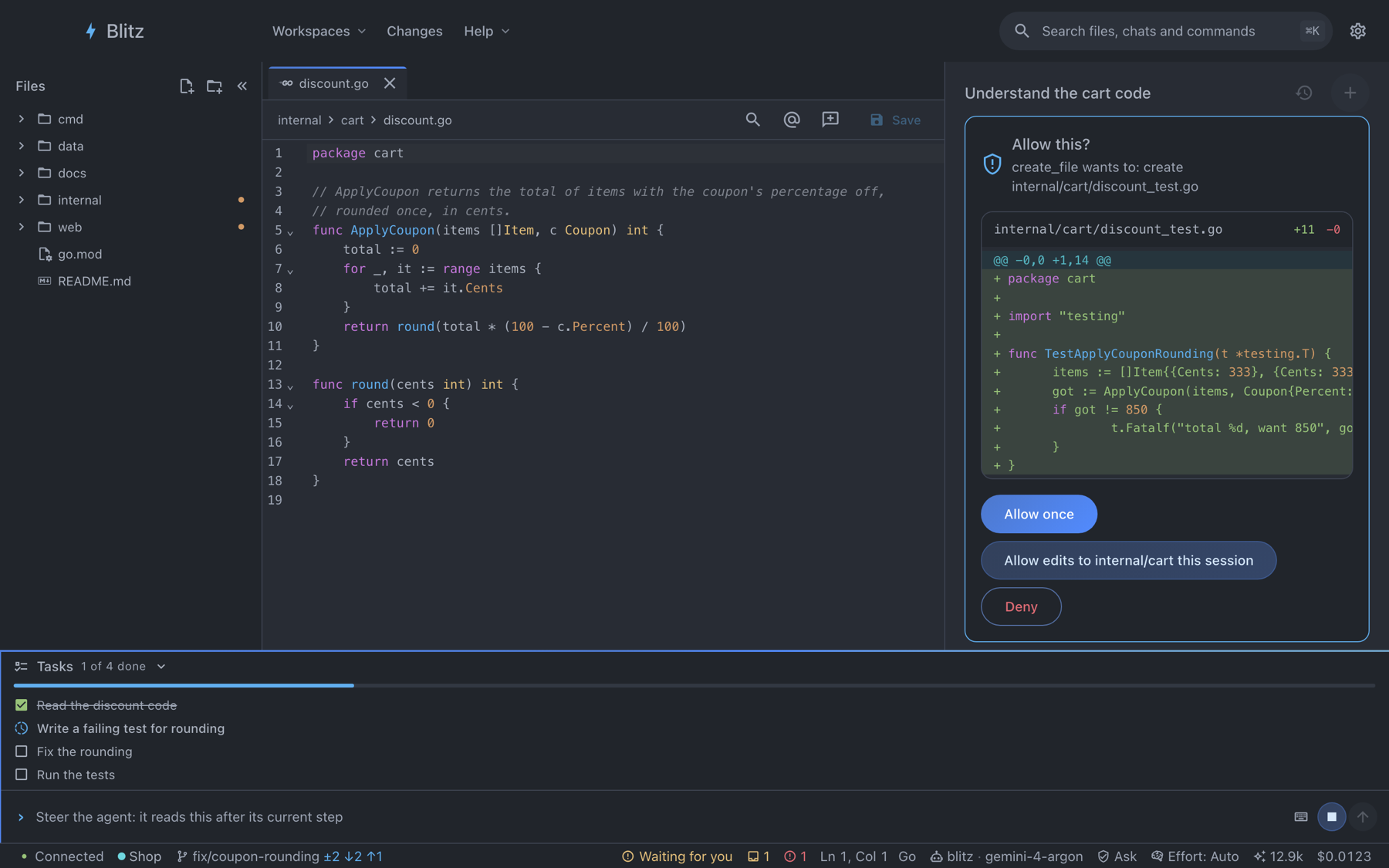
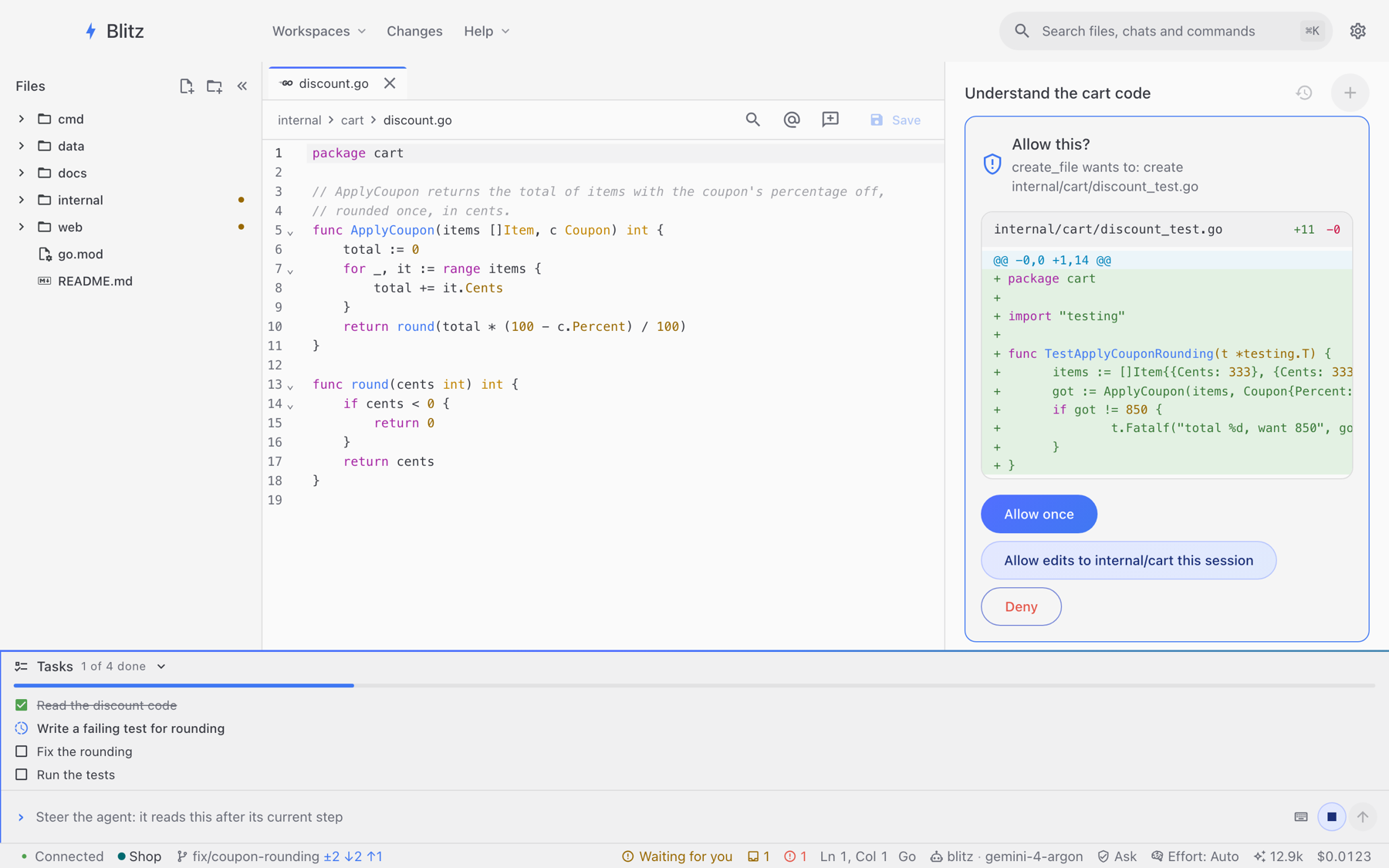
Blitz starts simple: it shows what you need to work with an agent, with sensible defaults for the rest. Show advanced (in the Settings title bar) reveals everything else: custom agents and scheduled workers, model and generation settings, permission rules, git actions and more. Turning it off again hides them without changing them.
The window keeps only its own settings, in ~/.blitz/desktop.json: its theme, layout, and the workspaces it knows. Everything else lives in the service, so the REPL and the app see the same sessions.
A web page can’t open a Unix socket, so the app starts a host beside it, blitz-tray --serve, which serves the page on a loopback address behind a one-time link and forwards the page’s API calls, and only those, to the service’s socket. The page uses Connect’s generated TypeScript client against its own origin; responses stream through as they arrive, so turn events appear as they happen. The host listens only on 127.0.0.1 and stops when the window closes, so nothing new is reachable from the network.
Model and tool output is rendered as React elements (Markdown with raw HTML skipped), never as HTML. Web links open in the system browser, and images in output are never fetched. Mermaid diagrams are drawn in Mermaid’s strict mode, and their SVG is sanitized before it’s shown.
If the service isn’t running, the app offers to install it (a login item, as blitz service install does) or to start it, and says when the running service is stale: older than the app, or its program removed or replaced.